
Getting Started with Factorial Code Forms
Enable Factorial Code Form
Section titled “Enable Factorial Code Form”The first step is to create your Factorial Code process and configure the input parameters that will define form fields.
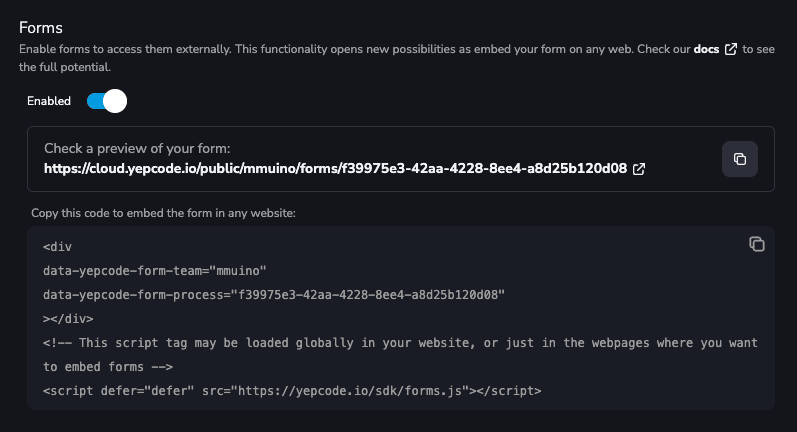
With these input parameters configured, it is time to enable the forms feature. Simply visit the process Dashboard and enable the Form switch in the Trigger from Factorial section.
Restrict who can open the form
Section titled “Restrict who can open the form”The Authentication field next to the Forms flag decides who may read the form schema and submit it:
- Factorial users of the company that installed the app: the form URL is closed to anonymous requests. The only credential it accepts is a Factorial Code token of a member of the workspace, which the playground link on the process dashboard sends for you; every other request gets a
401. - Public access: anyone who knows the form URL can open and submit it.
New forms are created requiring a Factorial user. Forms enabled before this field existed keep behaving as public forms until you change them.
The same setting lives in the process metadata.json as form.authMode, so it travels with your code through fcode pull and fcode push:
{ "form": { "enabled": true, "authMode": "FACTORIAL" }}Public forms carry no authMode entry. To lift protection from a form that currently requires a Factorial user, set "authMode": "NONE" explicitly — omitting the field leaves the form protected.