

Factorial Code CLI
Introduction
Section titled “Introduction”A Command Line Interface (CLI) is a text-based interface that enables users to interact with a computer program. Factorial Code provides both a Graphic User Interface (GUI), accessible at https://code.factorialhr.com/platform, and a CLI for interacting with Factorial Code Cloud.
Factorial Code CLI
Section titled “Factorial Code CLI”The Factorial Code Command Line Interface facilitates interaction with Factorial Code Cloud directly from your local workstation’s command line. It’s particularly useful if you prefer developing and testing processes’ source code locally rather than using the web IDE of Factorial Code Cloud.
By using Factorial Code CLI, you can employ version control systems like git to manage your code and synchronize your repository with Factorial Code Cloud. In essence, the CLI allows you to run commands such as clone to download all your team workspaces, run to test your code locally, and push to upload changes to Factorial Code Cloud.
Watch the video below for an overview of how Factorial Code CLI can be used (Spanish version):
Installation
Section titled “Installation”Factorial Code CLI is published on npmjs so just install it as any other nodejs package:
pnpm install -g @factorialco/fcode-cliAsk for help
Section titled “Ask for help”As with any other command-line tool, you can run the help command to display the list of available commands:
$ fcode helpFactorial Code Command Line Interface
VERSION  @factorialco/fcode-cli/1.0
USAGE  $ fcode [COMMAND]
COMMANDS  clone    Clone team processes  help     Display help for fcode.  login    Login to the service  logout   Logout from service  ...
Login to your Factorial Code account
Section titled “Login to your Factorial Code account”Before interacting with your account, you need to log in. These credentials are personal and grant you access to your Factorial Code teams.
$ fcode loginWhat is your fcode password (not stored)?: **********🔑 Checking credentials... done👐 Hi, Ada Lovelace!You can provide your credentials using the credentials prompt, or you can use the --email and --password options.
$ fcode login --email your-email --password your-passwordLogout from your Factorial Code account
Section titled “Logout from your Factorial Code account”Perform a logout to remove access to your Factorial Code account.
$ fcode logout👋 Bye!Clone your team workspace locally
Section titled “Clone your team workspace locally”Clone one of your team workspaces using:
$ fcode clone ada-lovelacefetching processes...
fetching modules...
fetching variables...
fetching locales...
🎉  ada-lovelace team processes cloned successfully!
$ cd ada-lovelace$ fcode clone🏢 Allowed teams: ada-lovelaceInspect the generated folder, and you’ll see some folders and files:
📦 ada-lovelace┣ 📂 dependencies┃ ┣ 📂 versions┃ ┃ ┣ 📂 v1.0┃ ┃ ┃ ┣ 📜 package.json┃ ┃ ┃ ┗ 📜 requirements.txt┃ ┃ ┗ 📂 ...┃ ┣ 📜 package.json┃ ┣ 📜 package.inherited.json┃ ┣ 📜 requirements.txt┃ ┣ 📜 requirements.inherited.txt┣ 📂 i18n┃ ┣ 📜 en.yaml┃ ┣ 📜 pt-BR.yaml┃ ┗ 📜 ...┣ 📂 modules┃ ┣ 📂 <javascript-module-slug>┃ ┃ ┗ 📜 <module-slug>.js┃ ┣ 📂 <python-module-slug>┃ ┃ ┗ 📜 <module-slug>.py┃ ┣ 📂 <module-with-versions>┃ ┃ ┣ 📂 versions┃ ┃ ┃ ┣ 📂 v1.0┃ ┃ ┃ ┃ ┗ 📜 <module-slug>.js┃ ┃ ┃ ┗ 📂 ...┃ ┃ ┗ 📜 <module-slug>.js┃ ┗ 📂 ...┣ 📂 processes┃ ┣ 📂 <javascript-process-slug>┃ ┃ ┣ 📜 README.md┃ ┃ ┣ 📜 index.js┃ ┃ ┣ 📜 metadata.json┃ ┃ ┣ 📜 parametersSchema.json┃ ┃ ┗ 📜 parameters.json┃ ┣ 📂 <python-process-slug>┃ ┃ ┣ 📜 README.md┃ ┃ ┣ 📜 main.py┃ ┃ ┣ 📜 metadata.json┃ ┃ ┣ 📜 parametersSchema.json┃ ┃ ┗ 📜 parameters.json┃ ┣ 📂 <process-slug-with-versions>┃ ┃ ┣ 📂 versions┃ ┃ ┃ ┣ 📂 v1.0┃ ┃ ┃ ┃ ┣ 📜 README.md┃ ┃ ┃ ┃ ┣ 📜 index.js┃ ┃ ┃ ┃ ┣ 📜 parametersSchema.json┃ ┃ ┃ ┃ ┗ 📜 parameters.json┃ ┃ ┃ ┗ 📂 ...┃ ┃ ┣ 📜 README.md┃ ┃ ┣ 📜 index.js┃ ┃ ┣ 📜 metadata.json┃ ┃ ┣ 📜 parametersSchema.json┃ ┃ ┗ 📜 parameters.json┃ ┗ 📂 ...┣ 📜 datastore.json┣ 📜 settings.json┣ 📜 variables.env┣ 📜 variables.inherited.env┣ 📜 variables.local.env┣ 📜 variables.meta.json┣ 📜 .gitignore┗ 📂 .fcodedependencies: Dependencies’ source code, containing both the python and javascript dependencies.package.json: It will be a json file with the dependencies for the javascript dependencies. Just the content of the inner dependencies field in any standard package (do not include thedependenciesfield). Sample:
{"axios": "^1.6.0","nodemailer": "^6.9.0"}requirements.txt: Python requirements.txt file with the dependencies for the python dependencies. Sample:
datarobot==3.5.2psycopg2-binary==2.9.10package.inherited.json/requirements.inherited.txt: the packages this workspace inherits from its parent workspaces, written on every pull. They are read-only and gitignored — the parent owns them. Declare a package name inpackage.jsonorrequirements.txtto override the inherited version. Each file only exists while there is something to inherit.versions: one folder per published dependency version, holding the manifest of each language as it was published. Written read-only and, unlike the process and moduleversionsfolders, never pushed back —fcode settings:versions:createis what publishes a version. A folder disappears once its tag is deleted in the cloud.
processes: Processes’ source code, with one folder per process, containing process files.README.md: Markdown file with the process description.index.jsorindex.py: Process source code in JavaScript or Python.metadata.json: Process configuration that is committed and pushed. See Process metadata.parametersSchema.json: Parameters schema JSON file.parameters.json: Sample input file dynamically generated. It will be used as default input file in local executions, but you may provide another one.versions: if process has published versions, a new folder will exists and each version folder will have a process replica with the published contents.- A process deleted while a workspace version still contains it
keeps its folder: pulled read-only, with its
versions, until the last of those versions is deleted.fcode processes:statuslists it under adeletedcolumn naming the versions that keep it, andfcode pushskips it. The same applies to deleted modules and locales.
modules: Modules’ source code, with one folder per module, containing the module file.versions: if module has published versions, a new folder will exists and each version folder will have a module replica with the published contents.
settings.json: Workspace-level settings that are committed and pushed — timezone, error handler process, parent teams and webhook authentication. See Sync workspace settings.variables.env: The workspace’s own team variables in .env file format (KEY=VALUE).variables.inherited.env: The variables inherited from parent workspaces, so local runs resolve them like the cloud does. Read-only and gitignored — they belong to the parent workspace,fcode pushskips them, and editing one only warns. To change a value here, add the key tovariables.envinstead: that overrides the inherited one.variables.local.env: Local environment variables that override the other two.variables.meta.json: Records which team variables are secret. Their values live invariables.env, where a secret one is pulled down as the********placeholder.datastore.json: Factorial Code datastore file..gitignore: Auto generated gitignore file. It will be used if you create a git repo for this directory to ignore sensitive resources (variables .env)..fcode: Factorial Code workspace metadata directory.
Clone every App of your team
Section titled “Clone every App of your team”fcode clone brings down one workspace. fcode team:clone brings down everything your development
team owns, in a single folder structure — one folder per App, each holding a checkout of that
App’s development workspace, plus the team’s global workspaces
under global-workspaces/:
$ fcode team:clone
🏢 cloning 2 App(s) and 1 global workspace(s) of 'Acme Payroll'...
🌐 Acme Base → global-workspaces/acme-base📦 Payroll Sync → payroll-sync/app (dev-b5hiralj5hpupls4otok6vxah)📦 Time Off Sync → time-off-sync/app (dev-4lr394yjexzgded5o08znppav)
✅ global-workspaces/acme-base (cloned)✅ payroll-sync (cloned)✅ time-off-sync (cloned)
🎉  'Acme Payroll' cloned successfully!
$ cd acme-payroll📦 acme-payroll┣ 📂 .fcode┃ ┗ 📜 team.json # the team, the Apps and the global workspaces cloned into it┣ 📂 .claude┃ ┗ 📂 skills # agent skills, installed once and linked into every workspace┣ 📂 global-workspaces┃ ┣ 📜 .gitignore┃ ┗ 📂 acme-base # a global workspace the team owns, laid out exactly as above┣ 📂 payroll-sync┃ ┣ 📜 settings.json # the App — name, description, id (mirror)┃ ┣ 📜 README.md # the App's README — yours to edit┃ ┣ 📜 MARKETPLACE.md # the marketplace listing — yours to edit┃ ┣ 📜 CHANGELOG.md # generated from the App's releases┃ ┣ 📂 marketplace┃ ┃ ┗ 🖼️ logo.png # the App logo set in the dashboard┃ ┣ 📜 .gitignore┃ ┗ 📂 app # the App's workspace, laid out exactly as above┗ 📂 time-off-sync ┗ ...- The App folder is named after the App, and the checkout inside it is always called
app— not after thedev-slug it was cloned from. The slug is recorded in.fcode/team.json, and the checkout is only a checkout:fcode remote:addcan re-point it at the production workspace without the folder name becoming a lie. - The App folder also holds the App’s metadata, in two kinds of file.
settings.json,CHANGELOG.mdandmarketplace/logo.*are mirrors of the dashboard — refreshed on every pull, editing them changes nothing upstream.README.mdandMARKETPLACE.mdare yours: edit them in the repository and upload them withfcode app:push, or edit them in the dashboard and let the next pull bring them down. A pull never overwrites a local edit you have not pushed. - A global workspace is checked out directly at
global-workspaces/{slug}: its slug is the workspace itself, fixed for life, so there is no App folder around it and nothing to re-point. Only the global workspaces owned by your team are cloned — the platform’s ownbase-apptravels through inheritance and is never copied. - The agent skills are installed once at the team root and linked into every
workspace, so an agent started in any of them resolves them. Skip with
--skipSkillsSetup.
Inside any workspace folder every command in this page works as usual. Two more commands span the whole team, and must be run from the team root:
$ fcode team:pull # clone Apps and global workspaces added since, then pull every workspace$ fcode team:status # report what differs from the cloud, workspace by workspaceteam:pullre-reads the team: it clones Apps and global workspaces added since the last run, pulls every workspace, and refreshes each App’s metadata files. AREADME.mdorMARKETPLACE.mdyou edited and have not pushed is kept and reported. An App or global workspace that has left the team is reported, never deleted — remove the folder yourself.team:statusalso tells you, per App, whetherREADME.mdandMARKETPLACE.mdare up to date, modified locally, behind the cloud, or both.- A failing workspace never aborts the run. Each one is listed in the summary, and re-running
team:pullretries only what is still missing. - There is deliberately no
team:push. You push from inside an App’s workspace withfcode push, one App at a time, so a deploy is always a deliberate act on one App.
Push an App’s README and marketplace listing
Section titled “Push an App’s README and marketplace listing”The App folder’s README.md and MARKETPLACE.md live in the dashboard too — the README on the
App’s README tab, the listing on its Publication tab. fcode app:push, run from the App
folder (or anywhere inside it), uploads the ones you changed:
$ cd payroll-sync$ fcode app:push
✅ README.md pushed- MARKETPLACE.md up to date
MARKETPLACE.md carries the listing’s fields as YAML front matter and the full description as its
body. Fields the dashboard owns appear as comments and are never pushed:
---# Marketplace listing of "Payroll Sync". Edit, then run `fcode app:push` from this folder.# Below the closing --- is the full description (markdown, 1-5000 chars).# publication_state: public (read-only, set in the dashboard)tagline: Payroll, reconciled every nightcategory_id: nullhelp_link: https://acme.com/docs/payroll-sync---## What it does
Payroll Sync pulls approved timesheets every night…- A file that changed both locally and in the dashboard since your last pull is a conflict: the
push refuses it.
fcode app:push --forcemakes the local file win; deleting it and runningfcode team:pullmakes the dashboard win. - A file the dashboard rejects (a tagline over 140 characters, a link that is not
http(s)://ormailto:) is reported with the field and the reason, and the other file is still pushed. app:pushmoves documentation, never code. Processes, modules and variables still go up withfcode pushfrom insideapp/.
Process metadata
Section titled “Process metadata”processes/<slug>/metadata.json holds the process configuration that travels with the source code.
It is committed to your repository and pushed to the cloud:
{ "name": "My process", "description": "What it does", "tags": ["ops"], "webhook": { "enabled": true, "authMode": "CUSTOM", "auth": { "variableKey": "WEBHOOK_TOKEN" } }, "form": { "enabled": true, "authMode": "FACTORIAL", "appRole": "USER_FACING_FORM" }, "factorial": { "enabled": true, "awaitResult": false, "requiredPolicies": [["company.manage_timeoff"], ["company.admin"]], "uiTrigger": { "enabled": true, "locationId": "calendar.header.admin", "label": "Approve all", "icon": "Bell" }, "form": { "enabled": true, "public": true, "appTool": true }, "agentTool": { "enabled": true, "description": "Approves every time-off request still pending for a team.", "effect": "WRITE", "whenToUse": "The user asks to approve the pending time-off requests of a team.", "whenNotToUse": ["The user wants to approve a single, named request."], "preconditions": ["The team has at least one pending request."], "doesNotDo": ["It does not notify the employees whose requests were approved."] }, "backend": { "enabled": true } }}webhook.enabled: whether the webhook trigger is active.webhook.authMode:NONEfor a public webhook,TEAMto inherit the workspace configuration insettings.json,CUSTOMfor a header and variable of its own.webhook.auth.variableKey: name of the team variable holding the token the webhook expects. Required withCUSTOM. Only the variable name is stored here, never the token itself, so this file is safe to commit.webhook.auth.headerName: header the token is expected in. Defaults toAuthorization, whose value must then beBearer <token>; any other header receives the raw value.form.enabled: whether the forms feature is active for this process.form.authMode:FACTORIALto require a Factorial user token from the company that installed the app,NONEfor a publicly reachable form. See restricting form access.form.appRole: the role this form plays when the process is part of an app used from Factorial’s marketplace —INSTALL,SETTINGS,USER_FACING_FORM,UNINSTALL, orNONEfor a form that is not tied to an app lifecycle.USER_FACING_FORMis the same setting asfactorial.form.appTool, which the platform keeps mirrored with it.factorial: how the process is exposed to Factorial as a Factorial Action —enabledis the master switch,awaitResultandrequiredPoliciesdescribe the action, and theuiTrigger(button in the Factorial UI),form,agentTool(Factorial One tool) andbackendsub-blocks each carry their ownenabled.form.appTooloffers the form on the App’s own page in Factorial.agentToolalso holds the tool contract the assistant reads:description,effect(READ,WRITEorDESTRUCTIVE; unset is treated as destructive),whenToUse,whenNotToUse,preconditions,doesNotDo,degradationandsimulatesFor. OnlyuiTrigger.labelacceptsfcode.i18n("key")tokens. The field-by-field reference is on the Factorial Actions page.uiTrigger: the legacy button block —enabled,locationId,label,iconandawaitResult. The platform keeps it mirrored withfactorial.uiTrigger, so a file written before thefactorialkey existed still round-trips; when a file carries both,fcode pushsendsfactorialand the mirror updatesuiTrigger.
Defaulted fields are left out of the file: form.authMode, form.appRole and webhook.authMode
when they are NONE, and webhook.auth.headerName when it is Authorization. A public webhook
carries only "webhook": { "enabled": true }, and "authMode": "NONE" is how you un-protect one
from code.
Forms differ. A form switched on with no access in the file requires a Factorial user, because a
file that says nothing about access must not publish a form. To release one, set
factorial.form.public (or the legacy "form": { "authMode": "NONE" }) and keep it in the file:
drop it and the next push closes the form again.
The factorial block follows the same rule: awaitResult is left out when true,
requiredPolicies when empty, form.public when false, the agentTool texts when unset and its
lists when empty, and a sub-block whose enabled is false is left out altogether — so an action
that is only a Factorial One tool with no contract yet carries just
"factorial": { "enabled": true, "agentTool": { "enabled": true } }. A process that is not exposed
to Factorial has no factorial key at all. factorial.title and factorial.description from an
early draft of the block are no longer read: a file that still carries them is pushed without
them and they disappear on the next pull. The process’s lifecycleRole (INSTALL, SETTINGS,
UNINSTALL, SYNC) is derived from
reserved slugs and is never written to this
file.
Sync workspace settings
Section titled “Sync workspace settings”Workspace-level settings live in settings.json at the workspace root and are synced with their own
commands:
$ fcode settings:pull # write the cloud settings into settings.json$ fcode settings:push # apply settings.json to the cloud$ fcode settings:status # compare local and cloud settings{ "parentTeams": [], "zoneId": "Europe/Madrid", "errorHandlerConfig": { "processSlug": "error-handler", "tag": "v1" }, "webhookAuth": { "variableKey": "TEAM_WEBHOOK_TOKEN" }, "versions": [ { "tag": "v1.0.0", "comment": "First stable release", "createdAt": "2026-08-01T10:00:00" } ], "aliases": [{ "name": "production", "tag": "v1.0.0" }]}zoneId: the team timezone.errorHandlerConfig: the error handler process, referenced by slug so the file is portable between teams; the CLI resolves it to a process id on push.parentTeams: the teams this one inherits processes and modules from, in resolution order. Each entry is a plain slug for a live parent, or{ "slug": "...", "version": "..." }to pin the parent to one of its published team versions or aliases.webhookAuth: the workspace webhook authentication that every webhook with"authMode": "TEAM"inherits.headerNameis omitted when it isAuthorization. Removing the wholewebhookAuthobject and pushing clears the cloud configuration, which makes every webhook inheriting it reject all calls.versionsandaliases: the workspace versions of the team, synced like the other settings. Adding an entry with a newtag(optionally acomment) and pushing publishes that team version —createdAtis filled in by the cloud, so leave it out. Removing a version and pushing asks for confirmation before deleting it from the cloud (the deletion cascades likesettings:versions:delete;--forceskips the prompt). Aliases sync fully: push creates, re-points and deletes them to match the file. A version’scommentis immutable once published. The imperativesettings:versionsandsettings:aliasescommands below remain as a direct alternative.
fcode pull and fcode push include the workspace settings, running them last so the error
handler’s process slug resolves against processes that exist. fcode settings:status reports whether
the settings changed locally, in the cloud, or both. When settings.json has unpushed local changes,
settings:pull refuses to overwrite them — push first, or pass --force to discard them.
Manage workspace versions and aliases
Section titled “Manage workspace versions and aliases”Workspace versioning publishes a version of the whole workspace: every process and module owned by the team gets a version with the same tag, and bare module imports are pinned to it inside the published snapshots.
$ fcode settings:versions:create v1.0.0 --comment "First stable release"$ fcode settings:versions:list$ fcode settings:versions:delete v1.0.0
$ fcode settings:aliases:set production v1.0.0$ fcode settings:aliases:list$ fcode settings:aliases:delete productionsettings:versions:createskips any process or module that already has the exact tag and reports a per-entity summary (created / skipped / failed). After the mutation it runsfcode pull, so the newversions/<tag>/folders andsettings.jsonare refreshed locally (note: with theignoreProcessVersionsCLI setting enabled, the process version folders are not materialized). The command exits with a non-zero code when any entity failed, so release pipelines can detect an incomplete version; re-running it publishes only what is still missing.settings:versions:deletecascades: every owned process/module version with the tag is deleted, together with the aliases, executions and schedules referencing them. The command asks for confirmation unless--forceis passed, and is rejected while a workspace alias still points at the version. A process, module or locale that was deleted and kept only by this version is removed for good with it, and the nextfcode pulldrops its read-only folder.settings:aliases:setcreates the alias or re-points an existing one, upserting the per-entity alias on every owned process and module that has the target tag published.
A typical promotion of a development workspace to production combines remotes with these commands:
$ fcode remote:set prod-team # target the production workspace$ fcode push # copy code + published versions (create-only), settings.json included$ fcode settings:versions:create v1.0.0 # record the workspace version (existing tags are skipped)$ fcode settings:aliases:set production v1.0.0Since fcode push syncs settings.json, the last two commands are only needed for a tag or alias that
is not already listed in it.
Execute processes locally
Section titled “Execute processes locally”Execute a process locally using the run command:
$ fcode run <process-slug>By default, the process is executed using the parameters.json file located in the process folder. You may provide another input params using the --parameters option:
$ fcode run <process-slug> --parameters path/to/parameters.jsonLocal runs resolve fcode.i18n against the workspace’s own i18n/ files, so they behave like the
cloud. Pass --locale to run in a specific one:
$ fcode run my-process --locale pt-BRRun a local webhook server
Section titled “Run a local webhook server”The http command starts a local HTTP server that replicates the same webhook environment that Factorial Code provides on the cloud, exposing also your forms schema. This lets you develop and test webhook-triggered processes directly on your workstation without any deployments.
$ fcode httpAvailable flags:
| Flag | Default | Description |
|---|---|---|
-P, --port | 3000 | Port to listen on |
-l, --logLevel | DEBUG | Log level for process executions (DEBUG, INFO, WARNING, ERROR) |
--auth-user | — | Basic auth username |
--auth-password | — | Basic auth password |
-j, --jsonLogs | — | Output process logs as NDJSON |
# Start on default port 3000$ fcode http
# Start on a custom port$ fcode http --port 8080
# Protect the whole local server with basic auth$ fcode http --auth-user admin --auth-password secretRun integration tests
Section titled “Run integration tests”The test command lets you define and run test cases for your processes locally. Tests live alongside the process source code and verify that a process produces the expected output for a given set of inputs.
Scaffold tests for a process
Section titled “Scaffold tests for a process”Use test:scaffold to generate a starter test structure for a process:
$ fcode test:scaffold my-processFolder structure
Section titled “Folder structure”processes/ my-process/ index.js tests/ variables.test.env ← optional: variable overrides for all tests testHooks.js ← optional: global setup/teardown hooks 01-basic/ input.json ← required: parameters passed to the process output.json ← optional: expected return value variables.test.env ← optional: variable overrides for this test only testHooks.js ← optional: per-test setup/teardown hooks 02-edge-case/ input.json output.json 03-invalid-input/ input.json error.json ← optional: expected failure (mutually exclusive with output.json)Test cases are discovered by scanning subdirectories of tests/ and run in alphabetical order — use a numeric prefix (01-, 02-, …) to control the sequence.
Running tests
Section titled “Running tests”# Run tests for all processes in the workspace$ fcode test
# Run tests for a single process$ fcode test my-process
# Show full process log output during test runs$ fcode test --logLevel DEBUG my-processInput and output files
Section titled “Input and output files”input.json — passed as fcode.context.parameters to the process, exactly like --parameters on fcode run:
{ "userId": 42, "format": "csv" }output.json — the expected return value. Comparison is exact deep equality — every key must match. If omitted, the test only checks that the process runs without throwing (smoke test):
{ "rows": 5, "status": "ok" }error.json — use instead of output.json when the process is expected to fail. output.json and error.json are mutually exclusive:
{}{ "message": "User not found" }An empty object asserts only that the process fails. Adding a "message" key asserts the error message contains that substring (case-sensitive).
Variable overrides
Section titled “Variable overrides”Variables are resolved in the following priority order (highest wins):
- Per-test
tests/{name}/variables.test.env - Global
tests/variables.test.env - Workspace
variables.local.env - Workspace
variables.env - Workspace
variables.inherited.env(variables from parent workspaces)
# tests/variables.test.env — override DB for all testsDB_URL=postgres://localhost/test_db# tests/02-auth-check/variables.test.env — override for one specific testAPI_KEY=test-only-keyHooks let you seed data, reset state, or clean up external resources around test execution. Export before, after, or both from a testHooks.js (or testHooks.py) file. Inside hooks you have full access to fcode.env, fcode.datastore, fcode.processes, and all other SDK features.
- Global hooks (
tests/testHooks.js) run once around the entire suite —beforebefore the first test,afterafter the last. - Per-test hooks (
tests/{name}/testHooks.js) run around each individual test.
module.exports.before = async function before() {  await fcode.datastore.set('counter', '0')}
module.exports.after = async function after() { await fcode.datastore.del('counter')}def before(): fcode.datastore.set("counter", "0")
def after(): fcode.datastore.delete("counter")Test output
Section titled “Test output”Testing my-process (3 tests) ✓ 01-basic (245ms) ✓ 02-edge-case (312ms) ✗ 03-error-path Expected: {"status":"error"} Received: {"status":"ok","message":"unexpected success"}
2 passed, 1 failed
────────────────────────────────────────────────Total: 3 tests — 2 passed, 1 failedManage locales
Section titled “Manage locales”Locales hold the translations fcode.i18n resolves in processes, modules and form schemas. They
live as one YAML file per locale under i18n/, named after its identifier — i18n/en.yaml for
this workspace’s, i18n/en.inherited.yaml for what it inherits:
$ fcode i18n:pull # fetch every locale, inherited ones included$ fcode i18n:status # what changed locally vs the cloud$ fcode i18n:add pt-BR # track a new local file$ fcode i18n:push # create or update in the cloud$ fcode i18n:remove pt-BR # stop tracking it locally$ fcode i18n:reset # discard local changesfcode pull and fcode push include locales, so the whole-workspace commands already cover them.
The workspace’s primary locale — the one used when nothing else is named, and the fallback for
untranslated keys — lives in settings.json as primaryLocale and syncs with fcode settings:push.
See Internationalization for the file format and the fcode.i18n helper.
Manage package dependencies
Section titled “Manage package dependencies”Factorial Code support custom dependencies to use any npmjs or pypi package in your processes. Check dependencies section for more information.
In order to run a process, you need to install your team configured dependencies. You can do that with the dependencies command:
$ fcode dependencies [all|javascript|python]The install covers what the workspace actually runs — its own packages plus the ones it
inherits, with your own specifier winning per package
name — so a local run resolves the same package set the cloud does. fcode dependencies:status
shows how many packages come from parent workspaces.
There are two flags to manage dependencies:
--check: Check if dependencies are installed and installed versions are up to date.--reset: Performs a full reinstall of configured dependencies.
Pull changes from cloud
Section titled “Pull changes from cloud”If you or your colleages have performed changes in Factorial Code cloud, update your local files.
Fetch all processes from cloud and save them locally:
$ fcode pullfetching processes...- [new]     -> Create process name (<process-slug>)- [updated]  -> Updated process name (<process-slug>)- [deleted]  -> Deleted process name (<process-slug>)
modules are up to date.
variables are up to date.
locales are up to date.Push changes to cloud
Section titled “Push changes to cloud”After upgrading your processes or modules locally, update your cloud workspace from local changes using push command.
$ fcode pushuploading processes...[uploaded] -> modified-process-name (<process-slug>) uploaded to remote.[overwritten] -> conflictive-process-name (<process-slug>) overwritten in remote.Diff local and cloud changes
Section titled “Diff local and cloud changes”fcode status tells you that a resource differs. fcode diff shows what differs, as a
git-style unified diff of every file the workspace is stored as:
$ fcode diff
processes diff
🔥 (conflict) processes/sync-invoices--- remote/processes/sync-invoices/index.js+++ local/processes/sync-invoices/index.js@@ -12,3 +12,4 @@ export default async function main() {-  await sync()+  await syncAll()+  log("done") }
The remote side is the old side and your local files are the new one, so the patch reads as
what a push would apply to the cloud. A resource that exists on only one side diffs against
/dev/null. Inherited resources are read-only and are not compared.
This is most useful on a conflict: run it before answering the prompt from pull or push to see
what each side would discard.
Scope it to one kind of resource, or to a single one:
$ fcode processes:diff # every process$ fcode processes:diff hello-world # just this one$ fcode modules:diff$ fcode variables:diff$ fcode i18n:diff$ fcode dependencies:diff$ fcode settings:diffAdd local created resources
Section titled “Add local created resources”If you have created resources on your local workspace, you can add them to keep track and after that they could be pushed to remote:
ℹ️ 1 processes only existing in local: a-new-local-process Use command 'fcode processes:add' to keep track of these resourcesUsing the fcode processes:add command, it will be added and then will be shown in the status log.
Add new remote cloud team
Section titled “Add new remote cloud team”Factorial Code CLI is able to work with multiple remotes. This is pretty interesting to keep sync processes or modules between those environments.
Let’s say that you have a Factorial Code staging enviroment where you test your code before going to production. You cloud clone the staging environment and then add a new remote for the production envinroment. This is done with the fcode remote command:
$ fcode remoteAdd a remote team workspace
USAGE  $ fcode remote:COMMAND
COMMANDS  remote:add  Add a remote team workspace  remote:set  Set the active remote team workspace
After adding a new remote, it may be needed to perform a fcode add just to keep track of the files in this new environment. After that, you could go with a fcode push to deploy changes to the cloud.
Resource topics
Section titled “Resource topics”Each workspace resource has a dedicated topic, allowing you to manage your workspace resources independently using topics (modules, processes, variables):
| Topic/Command | status | diff | pull | push |
|---|---|---|---|---|
| processes | :white_check_mark: | :white_check_mark: | :white_check_mark: | :white_check_mark: |
| modules | :white_check_mark: | :white_check_mark: | :white_check_mark: | :white_check_mark: |
| variables | :white_check_mark: | :white_check_mark: | :white_check_mark: | :sparkles: (just create) |
List resources
Section titled “List resources”You may list all available resources using the status command:
$ fcode processes:status
processes status: slug                           name                               status ────────────────────────────── ────────────────────────────────── ──────────────── hello-world                    Hello world                        ✅  (up-to-date) stripe-customers-from-supabase Stripe Customers From Supabase Bar ✅  (up-to-date)
Pull resources changes from cloud
Section titled “Pull resources changes from cloud”In addition, you can fetch resources from the cloud and update locally:
$ fcode processes:pullfetching processes...processes are up to date.Push resources changes to cloud
Section titled “Push resources changes to cloud”You can update cloud resources with local changes:
$ fcode modules:pushupdating modules...modules up-to-dateDebug with visual studio code
Section titled “Debug with visual studio code”You can debug your fcode processes using vscode.
In order to have full debugging support you need to encapsulate your code in a main() function:
const { fcode } = require('fcode');
async function main() {  // your code}
module.exports = { main };from fcode import fcode, logger
def main(): # your codeThen you need to create the vscode configuration files. You can do it with the setup-debug command:
$ fcode setup-debug✨ Created .vscode/launch.json✨ Created .vscode/settings.jsonNow in your vscode Run and Debug tab you can select which process you want to debug:
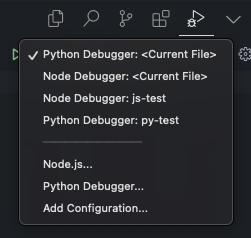
- The first two entries will debug your current file, you need to select Python/Node Debugger option depending on the language of your process.
- Next entries will be your processes, you can select one of them to debug.
Update CLI
Section titled “Update CLI”If you want to update the CLI, you can do it using the pnpm install command:
$ pnpm install -g @factorialco/fcode-cliIf a new version is available, you will be notified to update the CLI.
$ fcode --version
       ______         _             _       _  _____          _      |  ____|       | |           (_)     | |/ ____|        | |      | |__ __ _  ___| |_ ___  _ __ _  __ _| | |     ___   __| | ___      |  __/ _` |/ __| __/ _ \| '__| |/ _` | | |    / _ \ / _` |/ _ \      | | | (_| | (__| || (_) | |  | | (_| | | |___| (_) | (_| |  __/      |_|  \__,_|\___|\__\___/|_|  |_|\__,_|_|\_____\___/ \__,_|\___|
      Update available x.y.z → X.Y.Z      Run `npm i -g @factorialco/fcode-cli` to update
@factorialco/fcode-cli/x.y.z darwin-x64 node-v16.x.x